About Aisol Services Wall
Build a services section from your CMS in three steps. Drop a Collection List into the Services (CMS) slot. Name the text layers in your CMS item Title and Body (optionally Image, Icon, Tag and Bullets). With Service layout, turn off the list's Pagination; each item becomes one service.
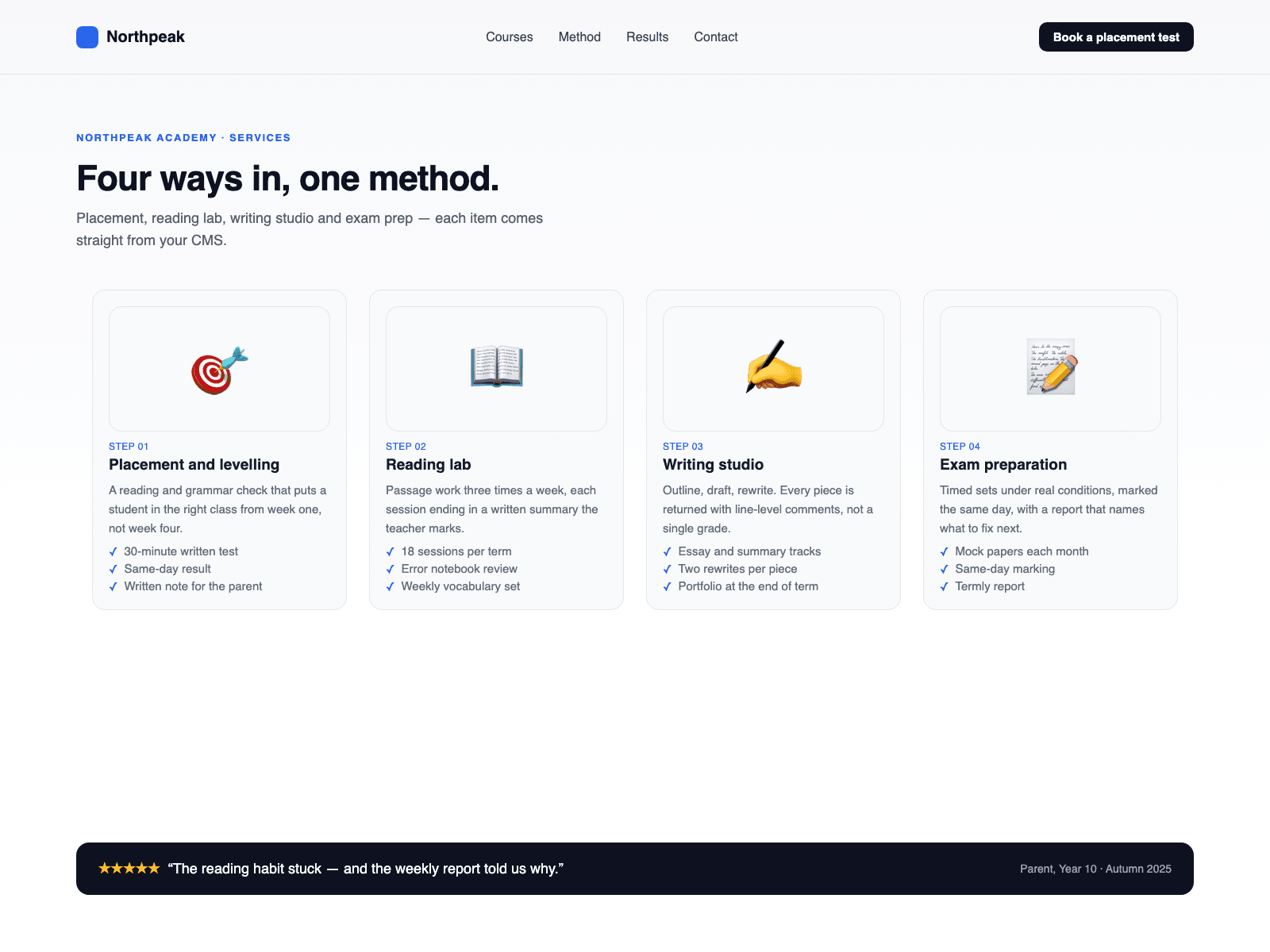
Service layout reads each item's Title, Body, Image, Icon, Tag and Bullets layers and draws them as Split (media and text alternate), Cards (one to four columns) or Rows (a compact list). Your list is hidden, never changed, so a Load more button is not shown. Without an image, the icon or a number badge is shown. The title links to the item's own link, and you can add a text link such as "Learn more". Initial count shows only the first N services with a Show more button that reveals N more per click; 0 shows all.
Prefer your own card design? Set CMS items to Your design: the Collection List is shown exactly as you built it, with its own layout, hover effects and pagination. Columns, Stack under and Reveal apply to Service layout only. Auto picks Service layout when a Title or Body layer exists, otherwise your design.
Layer names can be changed in the panel; a missing layer leaves that part out.
No CMS yet? Leave the slot empty and type services into the Services list.
Services fade in once as they scroll into view; reduced motion shows them at once. Columns step down at two breakpoints you set. The canvas shows a still preview; CMS items become services in Preview and on the live site.